
- How to Stop AI Chatbots From Training on Your Data
- Turn off AI chat history and training in Gemini
- Prevent Claude conversations from being used for training
- Reduce what each chatbot can reach beyond the chat box
- Delete AI chatbot data and understand retention limits
- AI chatbot privacy settings to check before school or work use
- What to check next
How to Stop AI Chatbots From Training on Your Data
If you use Gemini or Claude and don't want your conversations feeding the next model update, the controls exist, but Google and Anthropic document them differently, and neither company explains what happens to a conversation once a model has already trained on it. This guide walks through how to stop AI chatbots from training on your data on both platforms: which toggle to flip, which chats are already exempt by default, and where the documentation simply runs out.
Before doing anything else, confirm the account type. This guide covers personal accounts only: a standard Google Account using Gemini Apps, and Claude Free, Pro, or Max, including Claude Code used under one of those consumer plans (Anthropic). If the login in question is a school-issued Google Workspace for Education account, an employer-managed Google account, or Claude accessed through a work or organization plan, the settings described below may not be the ones controlling the account. Check the organization's own policy first, since this guide doesn't cover managed accounts.
Google's privacy documentation states that turning off Gemini's Keep Activity setting stops future chats from appearing in Activity and from training its AI models, but Google still holds onto those chats for up to 72 hours regardless of the setting, so it can respond and guard against a system failure (Google, updated three weeks ago). That 72-hour window matters because it's the clearest example of a pattern that repeats throughout both companies' policies: a privacy control that limits future use without deleting the data outright.
One note on wording before diving in. Google's documentation says Gemini chats can be used to "train" its AI models. Anthropic's documentation for Claude uses the phrase "improve Claude." Those are the two companies' own terms, and this guide keeps them separate rather than assuming they describe an identical process.
Google's material covers training toggles, retention windows, connected-app sharing, and a formal deletion-request path in real detail. Anthropic's cited support article confirms a model-improvement toggle and incognito chats but doesn't spell out deletion timelines or describe a connected-integration control. Where that's the case below, this guide says so rather than guessing at Claude's side of things.
Turn off AI chat history and training in Gemini
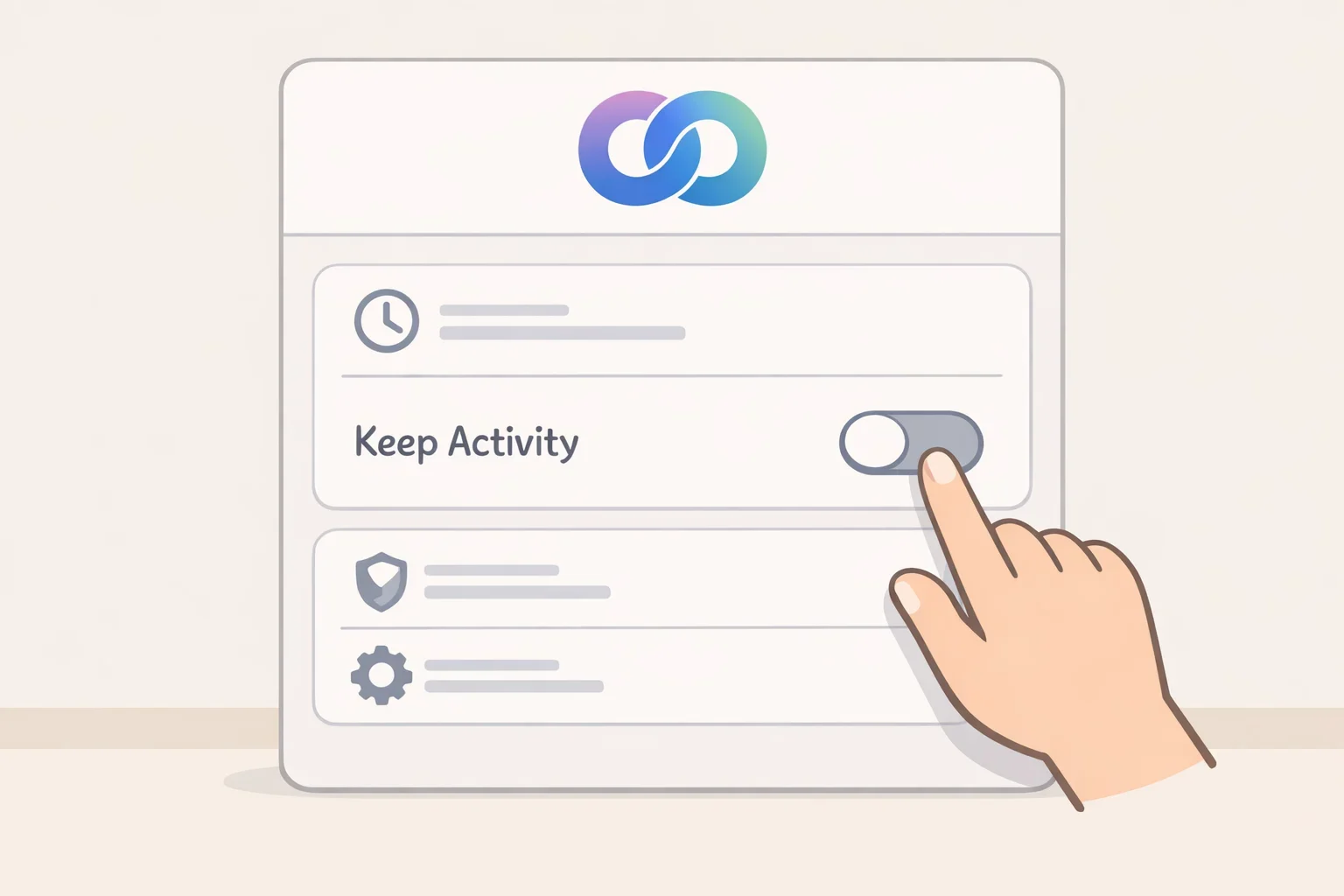
- Turn off Keep Activity. In Gemini Apps Activity settings, switching this off means future chats stop appearing in Activity and stop training Google's AI models, with one stated exception: chats where the user submits feedback are still used (Google). Menu labels shift between app versions, so confirm the current path inside the live Gemini app or Google's Data & Privacy settings rather than following a fixed click sequence.
- Use temporary chats for a one-off conversation. Temporary chats aren't used to train Google's AI models and don't depend on Keep Activity being off (Google). This is the faster option for a single sensitive conversation, rather than an ongoing account-wide change.
- Expect that Google can still use chats for a few specific reasons. Even with Keep Activity off, Google uses chats to respond, to protect against system failure, and to process any feedback submitted, storing that data for 72 hours to do so (Google).
Prevent Claude conversations from being used for training
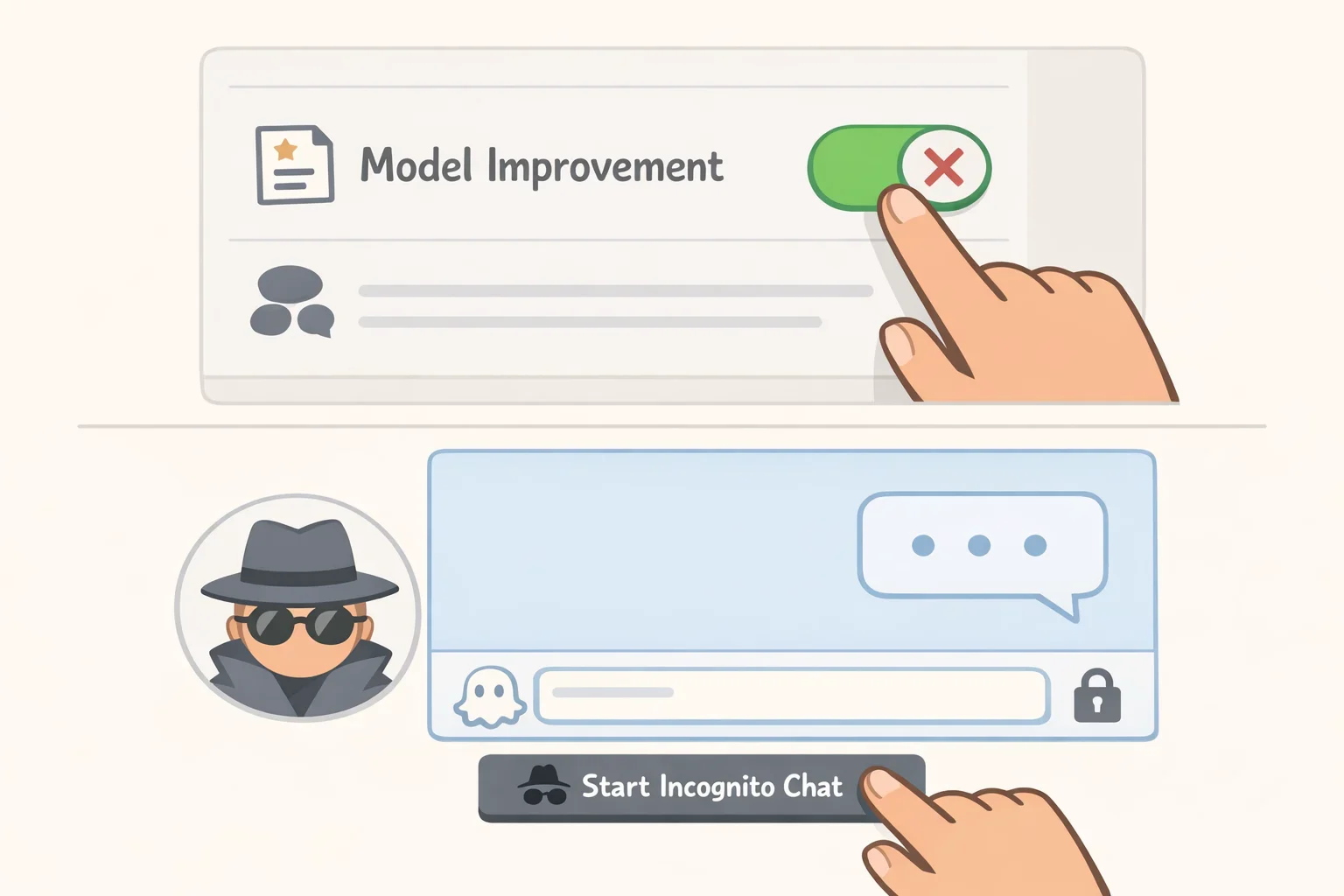
- Turn off Model Improvement. Anthropic's settings page lets a user opt future conversations out of being used to improve Claude (Anthropic). The setting lives in Claude's privacy settings, where Anthropic's step-by-step guide walks through the current menu path.
- Start an incognito chat when Model Improvement is on for the rest of the account. Anthropic states that incognito chats are not used to improve Claude even when Model Improvement is enabled elsewhere on the account (Anthropic); Anthropic's guide to incognito chats explains how to open one.
- Know the one exception Anthropic carves out. If Claude's safety classifiers flag a conversation, even an incognito one, it can still be used to improve internal trust-and-safety systems, detect harmful content, or support safety research (Anthropic).
Both companies' toggles govern conversations going forward. The cited privacy pages for Gemini and Claude don't describe a way to pull a specific chat's influence back out of a model that has already trained on it. Turning a setting off changes what happens next, not what already happened.
Reduce what each chatbot can reach beyond the chat box
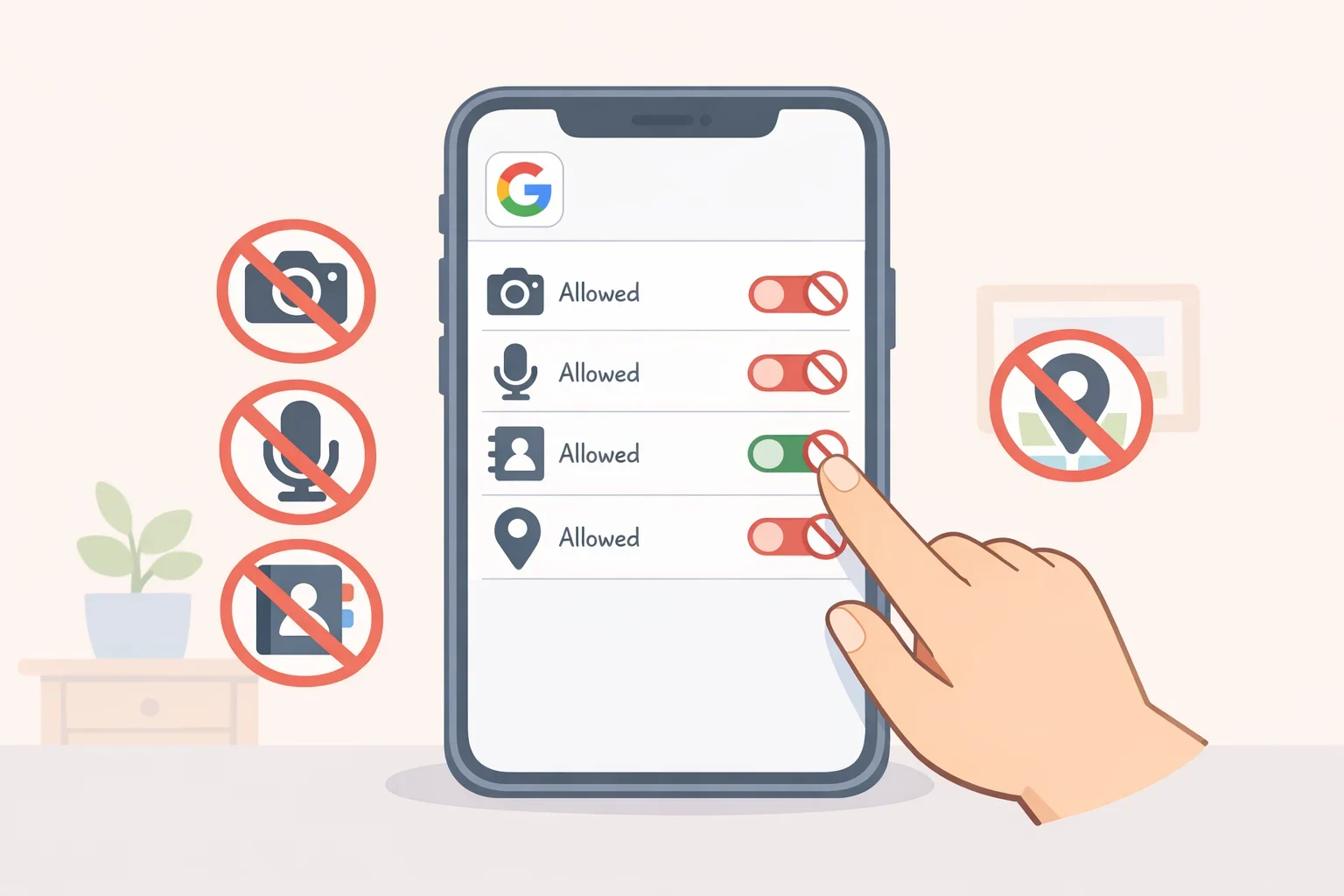
Training toggles only cover what's typed. Both platforms can also pull in data from connected apps, uploads, or device permissions, and that access follows its own rules.
Gemini's Connected Apps setting can share chat content along with device and location info, plus material from linked services, including emails, files, calendar events, photos, and videos (Google). Review which services are connected inside Gemini's app settings and disconnect anything not in active use; this setting reaches further than anything typed directly into a chat. The Anthropic support article cited here doesn't describe an equivalent connected-integration control for Claude, so anyone relying on Claude for connected data should check Claude's current Privacy Center directly rather than assume no such setting exists.
On mobile, Gemini and the Google app can use the camera, microphone, contacts, or location depending on Google app permissions. On Android, these are reviewed by holding down the Google app icon, tapping App Info, then Permissions, and switching each one to "Don't allow" as needed (Google). That instruction covers the Android path specifically; iPhone users should check their own device's app-permission settings, since Google's documentation doesn't lay out an identical iOS sequence.
Anyone who has used Gemini's Spark agent tools should check those separately. Spark's remote-browser feature can process information from a browser session, including cookies that carry website login credentials, and its remote-computer feature can save files and code pulled from connected apps (Google). Turning Spark off deletes that browser and computer data, but it does not delete separate chat history (Google). The Keep Activity toggle above doesn't automatically cover this, so Spark needs its own check.
Files, videos, screens, and photos shared with Gemini are saved to Activity when Keep Activity is on, and screenshots specifically may be reviewed by trained staff under that same setting (Google). That's confirmed for those upload types. Whether every upload path across every Gemini surface works identically isn't spelled out, so treat Keep Activity as the main lever rather than an exhaustive one.
Delete AI chatbot data and understand retention limits
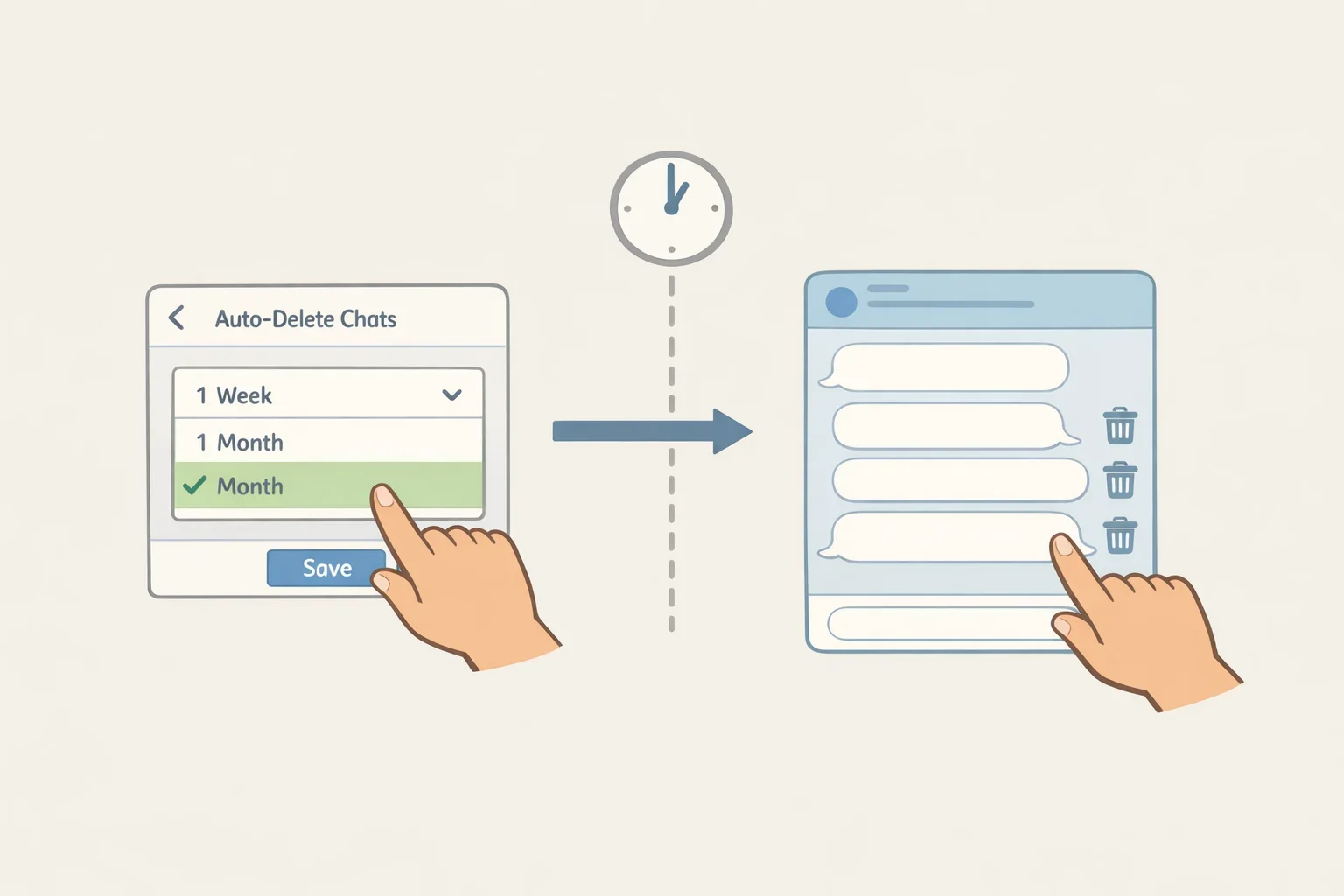
Turning off future training doesn't clear out what's already stored. Gemini gives several ways to manage that history directly:
- Shorten the auto-delete window. The default is 18 months; it can be changed to 3 months, 36 months, or set to never auto-delete inside Gemini Apps Activity (Google).
- Delete individual chats manually, anytime, independent of the auto-delete schedule (Google).
- Check the exceptions before assuming deletion is total. Chats already reviewed by human reviewers or outside service providers are disconnected from the account but kept for up to three years (Google), and some usage data persists until the Google Account itself is deleted (Google).
- Use Google's formal request path for anything the settings don't cover. Requests can be submitted through Google's Help Center, or in-app by selecting "More," then "Report legal issue," below a response (Google). It's a documented way to escalate, not a guarantee of removal from a model that's already been trained.
Claude's side is thinner in the material available here. The Anthropic article cited throughout this guide doesn't state a retention timeline or describe how long reviewed conversations are kept, so it's worth checking directly rather than assuming Gemini's 72-hour window or three-year figure carries over. Open Claude's Privacy Center and check the current Model Improvement status, whether incognito chat is available, any stated retention or deletion timeline, whether a connected-integration setting exists, and whether the account being used is personal or organization-managed.
AI chatbot privacy settings to check before school or work use
Privacy settings and academic-integrity rules are two different checks, and the second one matters more before typing anything into a chat box tied to an assignment.
Before pasting a draft, source notes, or a dataset into Gemini or Claude, confirm with the teacher whether AI tools are permitted for that specific assignment, whether uploading source notes is allowed, and whether the material includes classmates' work or unpublished research. That's a question for the teacher or the syllabus, not something a privacy toggle answers.
Turning off training or model-improvement settings doesn't clear a chat for classroom use. A conversation fully excluded from training can still violate a class AI-use policy or expose material that shouldn't have been shared in the first place. Opting out changes what happens to the data; it doesn't change whether using the tool was permitted.
The personal-account steps above don't apply to school-managed or employer-managed logins. Those accounts are controlled by an administrator, and a privacy or deletion request for one of them should go through that institution's IT, privacy, or records office rather than the personal settings pages described in this guide.
As a general precaution, avoid typing passwords or login credentials, financial account numbers, and health records into either chatbot. Anthropic specifically lists financial information, health records, passwords, and confidential business or personal documents as categories worth being cautious about even with its privacy protections active (Anthropic). That caution extends reasonably to school records and unpublished student work. Removing a name doesn't guarantee anonymity, either; details can still be identifiable through surrounding context, so redaction lowers risk without eliminating it.
What to check next
Confirm which account type is in use, then set the training toggle for whichever platform applies: Keep Activity off in Gemini, Model Improvement off in Claude, or temporary and incognito chats for a single conversation. Set the shortest Gemini auto-delete window that still works for how the account is used, and run through Claude's Privacy Center checklist directly rather than assuming Gemini's numbers apply there too.
If the account is school- or employer-issued, or the material relates to an assignment, check that institution's AI-use policy and confirm the specific assignment rules with a teacher before typing anything further. Privacy settings and permission to use the tool are two separate questions, and only one of them lives inside the settings menu.